Select. Describe.
It lands on a layer.
LayerShop is a layered image editor with generative AI built in. Make a selection, say what you want, and the result arrives as a new masked layer in your PSD, rendered on your own graphics card. Nothing to wire up, nothing to configure.
Free and open source Windows 10 and 11 No account, no credits

Three things, each one a layer.
The AI Gen panel sits next to Layers and Properties. It has two tabs, Create and Edit, and the buttons are named after what you want to do, not after the technique behind it.
Start from a prompt.
Write what you want and press Generate. The image fills your selection, or the whole canvas when nothing is selected, and comes in as its own layer named after the model and the prompt.
- The selection decides the shape. The model renders at the size it was trained for and the result is fitted to your selection.
- Transparent backgrounds from models that can make them.
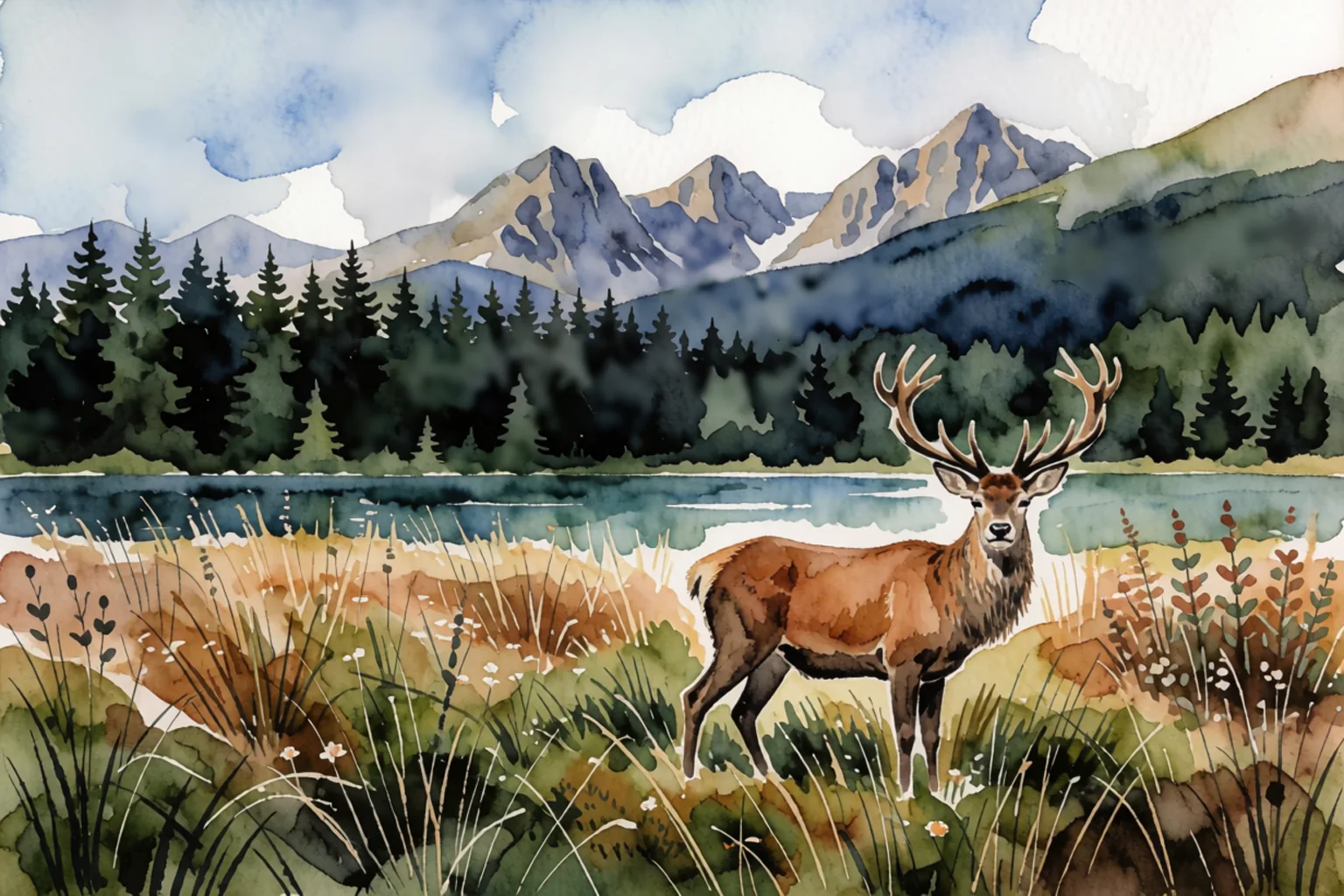
 [qwen_image_2.1] An alpine meadow at sunrise…
Paint something into a selection.
Select an area, describe what belongs there. The model sees the surrounding picture, so the light, perspective and colours carry over. Your original layer is not touched.
- Your selection becomes the layer's mask. Feather it, lasso it, paint on it afterwards.
- Mask tools in the panel: rectangle, ellipse, brush and eraser, without leaving AI Gen.

Or just say what to change.
With an edit model you give an instruction instead of a description. Change a season, a colour, a material. Refer to other pictures by name: "put the scarf from image 2 around her neck".
- A selection scopes the edit. Only that part is sent to the model, so everything outside stays exactly as it was.
- Up to three reference images per instruction.

Redraw it in another style.
Restyle starts from your picture instead of from noise, so the composition carries over. One slider, Strength, sets how far the result may depart from what is there.
- Low strength keeps shapes and colours and changes the surface.
- High strength keeps little more than the layout.
The parts you would miss in a web app.
Generating a picture is the easy bit. What matters in real work is what happens to it afterwards.
Nothing is overwritten
A result is a new layer above your picture. Hide it, delete it, lower its opacity, change its blend mode. One undo step takes it away.
The selection is the mask
A lasso or a feathered selection shapes the result and stays editable as the layer's mask. Paint on it to blend the edge by hand.
Layers remember how they were made
Model, prompt, settings and seed are saved with the layer in PSD, PSB and layered TIFF files. Click the layer next month and the panel loads them back.
Sizes are handled for you
Models want about a megapixel and edges in multiples of 16. LayerShop works that out from your selection and shows what it will ask for before you press Generate.
Known-good settings
Each recommended model ships with the steps, sampler and guidance it was tested at. The gear icon opens them when you want to change something.
Cloud models, if you want them
Add your own API key for OpenAI, Google, xAI, Meta or Black Forest Labs. They sit in the same list, and the panel shows what an image cost.
Three steps you already know.
Select
Marquee, lasso, or brush a mask in the panel. No selection means the whole canvas.
Describe
Pick Create or Edit, choose a model, write a prompt. Press Generate or Ctrl + Enter.
Get a layer
The result appears above your picture, masked by the selection. Esc cancels a running generation.
ComfyUI inside, without the graph.
ComfyUI is the best engine there is for running image models on your own hardware. It is also a node editor, and not everyone wants to wire samplers to fill a selection. LayerShop keeps the engine and hides the wiring.
- Built-in nodes only. The workflows follow ComfyUI's own templates. No custom nodes to install or keep updated.
- Already run ComfyUI? It uses yours. Scan Server lists the models you have. A server LayerShop did not start is never stopped.
- Your own workflows work too. Export one in API format, mark where the prompt and size go, paste it in.
- Scriptable. Every action is a command, so agents can drive it over MCP.
// Paste any workflow exported with Workflow › Export (API).
// LayerShop fills in the marked values on each run.
"6": { "class_type": "CLIPTextEncode",
       "inputs": { "text": "%prompt%" } },
"5": { "class_type": "EmptyLatentImage",
       "inputs": { "width":  "%width%",
                   "height": "%height%" } },
"3": { "class_type": "KSampler",
       "inputs": { "seed":  "%seed%",
                   "steps": "%steps%",
                   "cfg":   "%cfg%" } }
From download to first image without opening a terminal.
No Python to install, no repository to clone, no model files to hunt for. The first time you open AI Gen, LayerShop offers to set up local AI and walks you through five steps.
A walkthrough of the wizard. Click through the steps.
Checking your PC
Nothing is changed in this step. LayerShop looks at what you have and says what will work.
Where should it go?
Two folders, both yours. Nothing is installed system-wide: no PATH changes, no administrator rights, no registry entries for Python.
Engine (ComfyUI + Python), about 6 GBD: has 412 GB free of 1 TB. Put models on your largest, fastest drive: an SSD loads them several times faster.
Which models?
Start small. You can add or remove models later in Preferences › Generative AI.
Installing
Keep working while this runs. Close the app and it picks up where it stopped: finished files are never downloaded twice.
Ready
LayerShop started the engine, loaded a model and rendered a test image, so you know the whole chain works before you rely on it.

Have ComfyUI already? Pick "Use my ComfyUI" on the first step and LayerShop only fetches the model files you are missing. More about the wizard
A short list that was actually tested.
You do not choose architectures or tune samplers. Each model below was run on the same prompt, kept only if the result held up, and ships with the settings it was judged at.
| Model | Use it for | Create | Edit | Fill | Download |
|---|---|---|---|---|---|
| Qwen Image 2.1in Starter | The all-rounder. Text to image, edits by instruction, reference pictures. | ✓ | ✓ | 18.5 GB | |
| Z-Image Turboin Recommended | Fast drafts in eight steps. | ✓ | 14.6 GB | ||
| FLUX.2 Klein 9Bin Recommended · needs a free Hugging Face account | Fills selections in the scene's own light. Four steps. | ✓ | ✓ | ✓ | 18.4 GB |
| Krea 2 Turbo | Photographic text to image, and restyling. | ✓ | 19.0 GB | ||
| Ideogram 4 | Text to image. | ✓ | 18.6 GB | ||
| Ming Image 0.1 Design | Layouts with readable text: posters, pages, UI screens, logos. | ✓ | ✓ | 25.9 GB | |
| Ernie Image Turbo | Text to image at two megapixels. | ✓ | 23.8 GB | ||
| HiDream O1 | Four-megapixel images, with a prompt writer and a refining pass. | ✓ | 37.7 GB |
Sizes are the files as stored on disk, measured from a working installation. Models share text encoders and VAEs, and shared files are downloaded once: Ideogram 4 is listed without the 10.6 GB encoder it shares with Qwen Image 2.1. Each model has its own licence, shown before you download it; some allow commercial work and some do not. A few, FLUX.2 Klein 9B among them, are published behind a licence click-through on Hugging Face: for those the wizard opens the page and asks for an access token. Dedicated inpainting models (FLUX.1 Fill, Qwen Image with a ControlNet) can be added by hand.
What you need, stated plainly.
This is a preview. It was developed and tested on one machine class, and this section says which.
- System
- Windows 10 or 11, 64-bitmacOS is planned. Linux is undecided.
- Graphics card
- NVIDIA, for local modelsTested on an RTX 4090 with 24 GB. Cards with less memory run the smaller models, more slowly; the wizard tells you which ones fit before it downloads anything.
- Disk space
- About 25 GB for the Starter set6 GB for the engine, then 15 to 26 GB per model. An SSD makes model loading much faster.
- Internet
- For the downloads onlyLocal models work offline once installed.
- No suitable GPU?
- Cloud models still workAdd an API key from a provider and skip the local setup entirely.
- Not required
- Python, Git, ComfyUI, an accountThe wizard brings its own copies and keeps them in its own folder.
Asked before you had to.
Is it really free?
Yes. LayerShop is free to download and use, with no account, subscription or credits. The source code is open under the MIT or Apache-2.0 licence. If it saves you time, there is a donate button.
Do I need to know ComfyUI?
No. You never see a node graph unless you go looking for one. LayerShop installs ComfyUI, starts it in the background when a local model is needed and stops it when you quit.
I already use ComfyUI. Will this interfere with my installation?
No. Choose "Use my ComfyUI" in the wizard and nothing new is installed: LayerShop talks to your server, reads which model files it has and lists them. If your ComfyUI is running, it is used as it is, and it is never stopped. Only a server LayerShop started itself is ever shut down.
Do my pictures leave my computer?
Not with local models: the picture goes from LayerShop to ComfyUI on the same machine and back. If you choose a cloud model, the prompt and the part of the picture it needs are sent to that provider, using your own API key, and only for that generation.
Can I use the results commercially?
LayerShop itself puts no restriction on what you make. The models do: each has its own licence, and some forbid commercial use. The wizard shows the licence before downloading a model. Check the one you use.
Does it replace Photoshop?
No, and it does not claim to. LayerShop is built on PhotoCraft, a young open-source editor that follows Photoshop's menus, shortcuts and PSD format: layers, masks, adjustment layers, layer styles, type and vectors are there, but not everything Photoshop does is. Many people will use it alongside what they have: generate and edit here, save a PSD, carry on elsewhere.
Which graphics cards work?
Local models need an NVIDIA card in this preview. Development and testing happened on an RTX 4090 (24 GB). ComfyUI can run models that are larger than a card's memory by keeping part of them in system RAM, at lower speed, so smaller cards work with the smaller models, but that has not been tested widely yet. Reports are welcome.
Is there a Mac or Linux version?
Not yet. This preview is Windows only. A macOS version is planned. Linux has not been decided.
What does "preview" mean here?
It works, people use it, and it has rough edges. Expect bugs, save often, and report what breaks. Things may change between versions.
Who makes it?
Slavomir Durej, an independent developer. LayerShop stands on two open-source projects: the editor is based on PhotoCraft by the ArtCraft team, and local models run in ComfyUI. It is not affiliated with or endorsed by either, or by Adobe.
Free to use. Paid for by people who find it useful.
Donate
LayerShop is made in one person's spare time. A donation buys test hardware and the hours to keep up with new models.
Ways to supportNeed something built?
Custom features, private model integrations, studio pipelines, batch tools and plug-ins are available as paid work. If your team needs LayerShop to do something specific, ask.
Custom developmentTry it on a picture you care about.
The download is small. The wizard does the rest.